Published on: 12 March 2024
Updated on: 23 December 2024
Thinking of using an eSIM on your iPhone by using the QR code scan? No problem! Here's a step-by-step guide to installing an eSIM profile manually:
There are 3 ways to check if your device is compatible
The activation code is a unique string of characters that links your iPhone to the eSIM profile. It often comes alongside a QR code, but you can enter it manually too. Here's an example of what the code might look like:
Example :
Now let's Install the eSIM
| 1 - Open Settings on your iPhone | 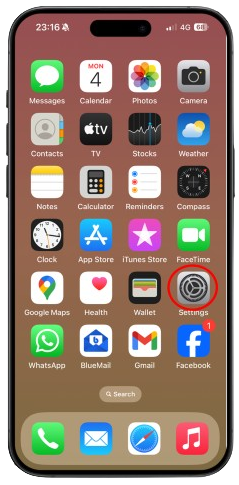 |
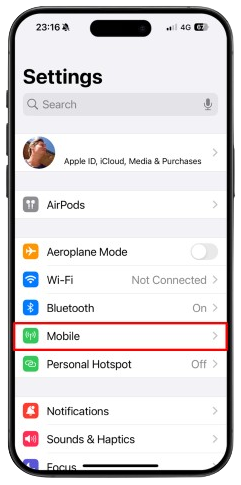 |
2 - Tap on Mobile or Cellular or Mobile Data (depending on your iPhone model). |
|
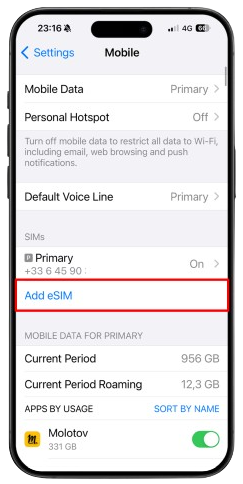
3 - In the SIMs section, tap on: Add eSIM or Add Cellular Plan. |
 |
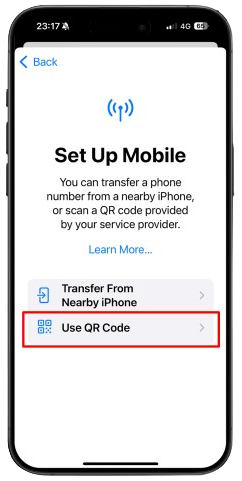 |
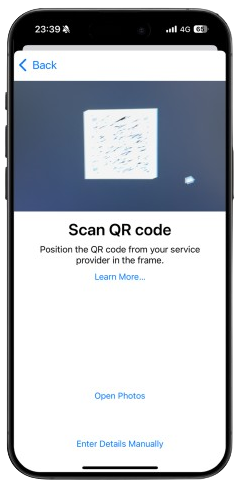
4 - Choose Use QR Code |
|
5 - You can use 3 options to install the SIM
|
|
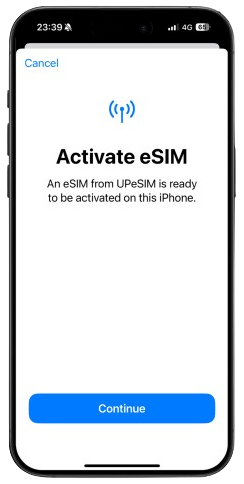 |
6 - click on Continue to install the eSIM |
|
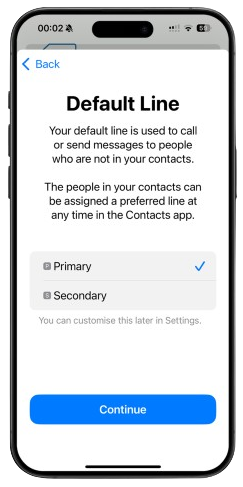
7 - Set your "country line" as Default Line
|
 |
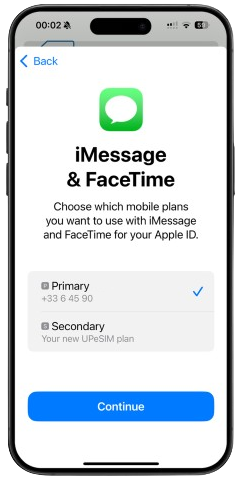 |
8 - Set your "country line" as Line for :
|
|
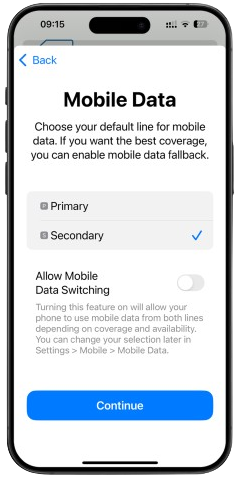
9 - Set your eSIM line for Mobile Data :
|
 |
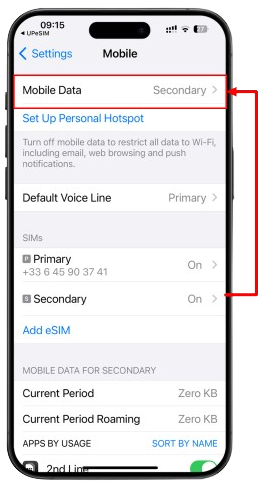 |
10 - Set the eSIM line for Mobile Data :
|
|
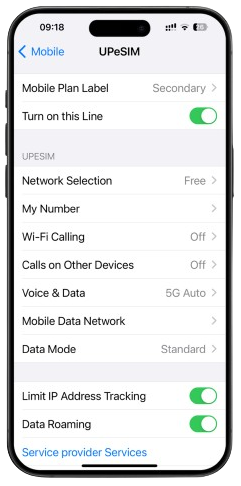
11 - Check the eSIM configuration :
|
 |
 BEST eSIM NETWORKS 4G/LTE or 5G speed 📲
 24/7 CUSTOMER SUPPORT response in 15 minutes 💬
 BEST QUALITY/PRICE FROM €1.99 💵
 100% SECURE ONLINE PAYMENT 🔒
BEST eSIM NETWORKS 4G/LTE or 5G speed 📲
24/7 CUSTOMER SUPPORT response in 15 minutes 💬
BEST QUALITY/PRICE FROM €1.99 💵
100% SECURE ONLINE PAYMENT 🔒
100% SECURE ONLINE PAYMENT 🔒
BEST eSIM NETWORKS 4G/LTE or 5G speed 📲
24/7 CUSTOMER SUPPORT response in 15 minutes 💬
BEST QUALITY/PRICE FROM €1.99 💵
100% SECURE ONLINE PAYMENT 🔒